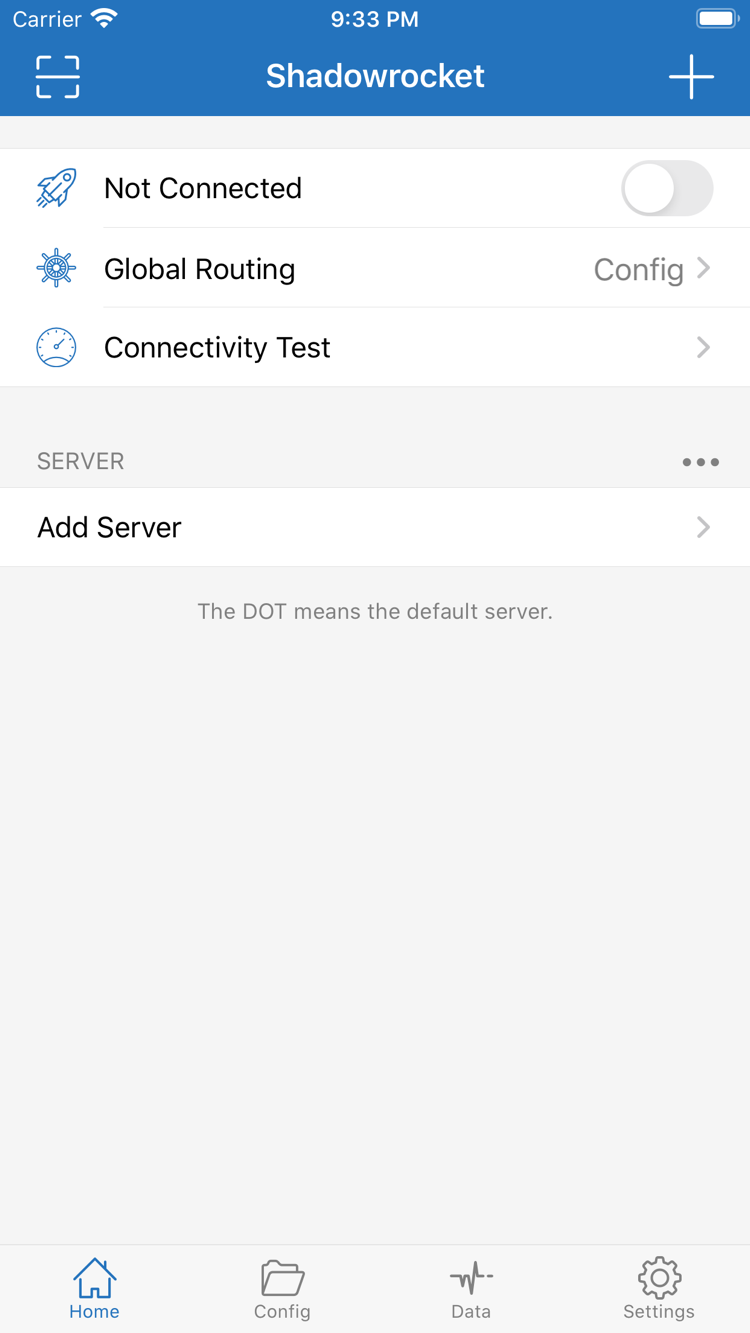
An all-platform rule-based proxy client for importing existing subscriptions and setting up rule routing. iPhone / iPad: $2.99 once in the App Store; Mac, Windows, Android and Linux: free.
Official App Store Home screenshot; configuration syntax example shown behind it.
CONFIG / match by rulesiOS · iPadOS · macOS · Windows · Android · LinuxPROXY / DIRECT / REJECT
CONFIGURATION INDEX
Shadowrocket rules and configuration
Prepare your own server details or subscription, then choose a connection method. The interface terms below refer to iPhone / iPad: Home manages servers and connections, Config manages rules, Data shows traffic, and Settings contains common options.
Match rules in order, then apply a policy
Rule routing applies different policies to different destinations. Select a configuration file in Config, then set Global Routing in Home to Config to process requests using those rules. DOMAIN-SUFFIX checks domain suffixes; IP-CIDR checks address ranges. Rules are matched from top to bottom, so put more specific conditions first and keep FINAL at the end. PROXY, DIRECT and REJECT specify proxying, direct access and rejection. Keep a copy of the original configuration before making changes. When testing, change one rule at a time to avoid mistaking a server issue for a routing issue.
On Demand starts connections according to configured network conditions; it does not correct server settings. First connect manually from Home and verify access in a browser. Then review the conditions and switch under On Demand in Settings. After setup, switch between Wi-Fi and cellular networks to check the behavior. If a connection starts again after you disconnect manually, check this setting before repeatedly deleting servers. On Demand and rule policies operate at different levels: the former determines when to connect, while the latter determines how requests are handled after connection. Disable the conditions temporarily to narrow down an issue.
# Example rules after a connection is established
[Rule]
IP-CIDR,192.168.0.0/16,DIRECT
FINAL,PROXY
Related interface SettingsOn Demand
The protocol must match the server
Shadowrocket supports protocols including Shadowsocks, VMess, VLESS, Trojan, HTTP, SOCKS5, WireGuard and Hysteria2. When adding a server, select the same type as your existing server details in Add Server, then check the address, port, authentication and transport settings. Fields are not interchangeable between protocols, and TLS or SNI settings cannot be inferred from a name alone. After importing through a share link or Scan QR Code, open the details and check the parameters. Even with a successful protocol connection, the route for a destination depends on Global Routing and the active rules.
# Check protocol parameters in Add Server
# This only shows the final policy for a request
[Rule]
FINAL,PROXY
Related interface Add ServerTypeScan QR Code
Subscription URLs and individual share links differ
A subscription updates a group of existing server entries; it is not the same input as a single server share link. Open the add option in Home, select Subscribe, then enter a subscription URL you already have. After saving, check that the group appears and its contents have loaded. If an update fails, first check that the URL is complete and authorization is still valid, then check network access. Do not repeatedly create duplicate subscriptions instead of troubleshooting. A subscription URL may contain personal access credentials, so do not include it in public screenshots or support messages. Updating a subscription primarily changes the server list; it does not replace the rules file in Config.
# Rules are still managed separately after adding a subscription
[Rule]
DOMAIN-SUFFIX,example.com,PROXY
FINAL,DIRECT
Related interface HomeSubscribe
Check server lists and rule files separately
Configuration files in Config manage settings such as General, Rule and Hosts; do not confuse them with server groups in Home. Before editing, confirm which file is in use and keep a recoverable copy. After editing, return to Home and check that Global Routing is set to Config. Policies in a rule file must match their intended use; saving a file successfully does not prove that a request matched a rule. To organize settings across devices, check the iCloud sync options available in the current version and verify the results item by item. Existing subscriptions, the selected configuration and connection status should still be checked on the destination device.
[General]
bypass-system = true
dns-server = system

[Rule]
GEOIP,CN,DIRECT
FINAL,PROXY
Related interface ConfigSettings
Check connectivity, requests and traffic separately
An enabled connection switch only indicates that the connection process has started; it does not confirm access. First use Connectivity Test in Home to check an existing server, then visit the destination you want to test and check Data for traffic changes. For more information, look for the diagnostics option in Settings. Results depend on the test method, destination and network environment, so they do not prove access to every website. If Proxy works but Config does not, focus on the rules and DNS. If both fail, recheck the address, port, authentication details and current network.
# Check whether a local network destination is incorrectly routed through a proxy
[Rule]
IP-CIDR,192.168.0.0/16,DIRECT
FINAL,PROXY
Related interface Connectivity TestDataDiagnostics
Global Routing: Config / Proxy / Direct
Choose Config for everyday rule-based routing. To isolate the effect of rules, temporarily use Proxy to check the proxy route, or Direct to compare with direct access on the current network. These modes change how requests are handled; they do not fill in server details. After testing, restore the original mode and test the same destination again to determine whether the change came from the rules or the connection itself.
Two ways to get Shadowrocket: iPhone / iPad from the App Store for $2.99 once; Mac, Windows, Android and Linux versions are free. Desktop and Android installers are available from this site's download page under /dl/shadowrocket/. Open the relevant platform section and select the file for your processor or distribution.
iPhone / iPad
$2.99 once in the App Store; other platforms are free. The two devices share the purchase, which can be restored with the same purchasing account. Check the App Store page for system requirements. When connecting for the first time, review the system VPN configuration authorization prompt before confirming.
Check the developer, app ID and official icon. If you have already purchased the app, check your purchased items first so a change in store region is not mistaken for a missing purchase.
Free · Apple Silicon / Intel. Check the chip or processor in About This Mac, then choose the installer for your hardware. Do not identify the processor by the computer's appearance. Check the chip type again if you switch computers.
If a first-launch warning says the developer cannot be verified, go to Privacy & Security in system settings and select Open Anyway. If another warning appears, first read the relevant instructions on the download page.
Free · 64-bit installer. Get the Windows version from the download page and first confirm your system and installer type. Server details and rules still need to be imported; completing installation does not mean the connection is ready to use.
If SmartScreen blocks the file, confirm it came from this site's download page, then select More info → Run anyway. Follow device management requirements on organization-managed computers.
Free · arm64 installer. Open the download page in your system browser and save the installer. If an in-app browser does not start the download, switch to the system browser and try again rather than repeatedly creating download tasks.
During installation, follow the system prompt to allow the current browser or file manager to install unknown apps. You can restore this permission afterwards. Before connecting, check your existing subscription and system VPN authorization.
Free · deb / rpm / AppImage. Choose the package format for your distribution and confirm the processor architecture. Use the appropriate package manager for deb and rpm files. AppImage files need execute permission.
Set permissions for AppImage with chmod +x. Find the exact file name and installation commands on the download page. Keep a copy of your configuration before updating so configuration migration issues are not confused with replacing program files.
Verify the app, restore purchases and understand usage
Shadowrocket is a closed-source commercial application. This is the official website and manual. Before getting the app, confirm the platform and source; before using it, prepare your own server or subscription details. The checks below distinguish app purchases, configuration management and network connections, which are not interchangeable.
Developer: Shadow Launch Technology LimitedApp ID: 932747118Two ways to get the app
Check the developer, official icon and app ID
On the iPhone / iPad App Store product page, check the app name Shadowrocket, the developer Shadow Launch Technology Limited and app ID 932747118 in the product link. The icon should match the official icon shown on this page. Do not rely only on a name or description in search results. If you see a listing with the same name, check all three details again. A matching name does not prove it is the same app, and search ranking is not a reliable way to verify identity.
For desktop and Android, use the installer for the relevant platform on this site's download page. If you open a download link from another page, return to All platforms and confirm the device and file type. Do not try to install one file on different operating systems. Mac versions for Apple Silicon and Intel, as well as Linux package formats, each have a specific purpose. Once you have the right installer, follow the download page instructions for first-launch system warnings.
App Store visibility depends on the account's store region
This app is currently unavailable in the mainland China App Store. If it does not appear in search, first check the store region for your Apple ID rather than repeatedly changing search terms. In system settings, open your account page, select Media & Purchases, then check Country/Region. Device language, system region and account store region are separate settings; changing the display language does not change the store region.
If you need to change regions, first review the account requirements and resolve any existing balance, subscriptions and payment details, then follow the process provided by the system. Whether the product page opens, a purchase is available and which currency is shown depend on the page for your current account. If you already have a purchase, check the original purchasing account and purchased items first. An empty search result does not mean the app has permanently disappeared from your device or account.
Two price tiers and restoring on a new device
In the US App Store, Shadowrocket costs $2.99 as a one-time purchase for iPhone / iPad; other storefronts may show local currency. Mac, Windows, Android and Linux versions are free. iPhone and iPad share the purchase, which can be restored using the account that originally purchased the app. Check the App Store page for system requirements rather than relying on OS version numbers from older guides.
Before replacing a device or reinstalling, note the original purchasing account and make sure your configuration is backed up. To download again, find Shadowrocket in the App Store purchased items. If the page shows a price again, check the account and purchase record before deciding what to do next. Desktop and Android users can return to this site's download page for the appropriate installer. Reinstalling the app does not necessarily restore servers, subscriptions and rules from the old device; check each item separately.
Prepare your existing details before adding a server or subscription
Before configuring the app, you should already have your own server details or subscription URL. A single server requires at least an address, port and authentication details that match its protocol. For TLS, SNI or other transport settings, use the existing server parameters. Do not guess at fields you do not understand or reuse a password, identifier or encryption field from a different protocol.
A share link is suitable for importing one entry; Subscribe loads and updates a group of entries. After importing, open the details and check them before choosing a server. A subscription URL may contain personal access credentials, so keep it intact when copying and hide sensitive parts when asking for help. example.com in the rule examples is only for demonstrating syntax; it is not a server provided by this site. Copying a sample rule will not create a working connection.
Check the switch, Global Routing and actual access separately
For your first connection, follow this order: check the server entry in Home, run Connectivity Test, review Global Routing, then turn on the connection switch and visit a destination. With Config selected, check the active file in Config. With Proxy selected, requests use the proxy route; with Direct selected, they use the direct route. The interface mode and rule policies are related, but they are separate settings.
If the switch is on but access fails, do not change the protocol, DNS and rules all at once. Keep other settings unchanged and compare results for the same destination. If Proxy works but Config does not, focus on rule order, policies and DNS. If both fail, recheck the server address, port, authentication and current network. Note any changes during testing and restore the intended mode afterwards to keep the troubleshooting results clear.
Understand the scope of rule examples
The configuration window on this page shows text syntax, not a complete file that can replace your existing configuration. DOMAIN-SUFFIX matches domain suffixes, DOMAIN-KEYWORD matches keywords in domains, IP-CIDR matches address ranges, GEOIP matches by the region associated with an address, and FINAL handles requests that did not match earlier rules. Rule order affects results. A broad condition placed first may prevent a more specific condition later from taking effect.
When checking a request, first confirm whether its destination uses a domain or an address, then find rules that may match. PROXY selects the proxy policy, DIRECT means direct access, and REJECT means reject. Do not read a policy's color as a connection health indicator; the color labels here only help identify policy names. Before making changes, copy the current configuration, change one condition and test again.
Update the app, refresh subscriptions and back up configuration
Updating the app, refreshing subscriptions and editing rule files are three separate maintenance tasks. Update the iPhone / iPad app through the App Store. Desktop and Android users can get the latest platform file from this site's download page. Subscription updates refresh an existing server list, while edits in Config affect rules and related settings. Success in one task does not mean the other two are complete.
Before maintenance, keep a usable configuration and note the current server, Global Routing mode and key settings. Afterwards, test again using the same network and destination. If you use iCloud sync, check the actual synced content on another device instead of assuming all runtime states are identical. Changes in Data traffic can help show whether requests are passing through, but cannot confirm service authorization or billing details. When asking for troubleshooting help, include the device, current mode, steps to reproduce and error text; this is more useful than a screenshot of the connection switch alone.
More detail for specific tasks in the official manual: locate the interface first, then check parameters and test results. The three articles below cover Trojan fields, a checklist for connected but inaccessible services, and the roles of Home, Config, Data and Settings.
Trojan uses TLS for transport. This article explains how it works and walks through the address, port, password and SNI fields to fill in after selecting Trojan in Add Server, along with common configuration mistakes.
The connection switch shows connected, but webpages will not load. This article checks server connectivity, Global Routing mode, DNS settings and configuration file rules in four steps, with the relevant interface location for each.
The Shadowrocket interface retains its English labels. This article explains Home, Config, Data and Settings, as well as policy terms such as Proxy, Direct and Reject, to help you follow instructions.